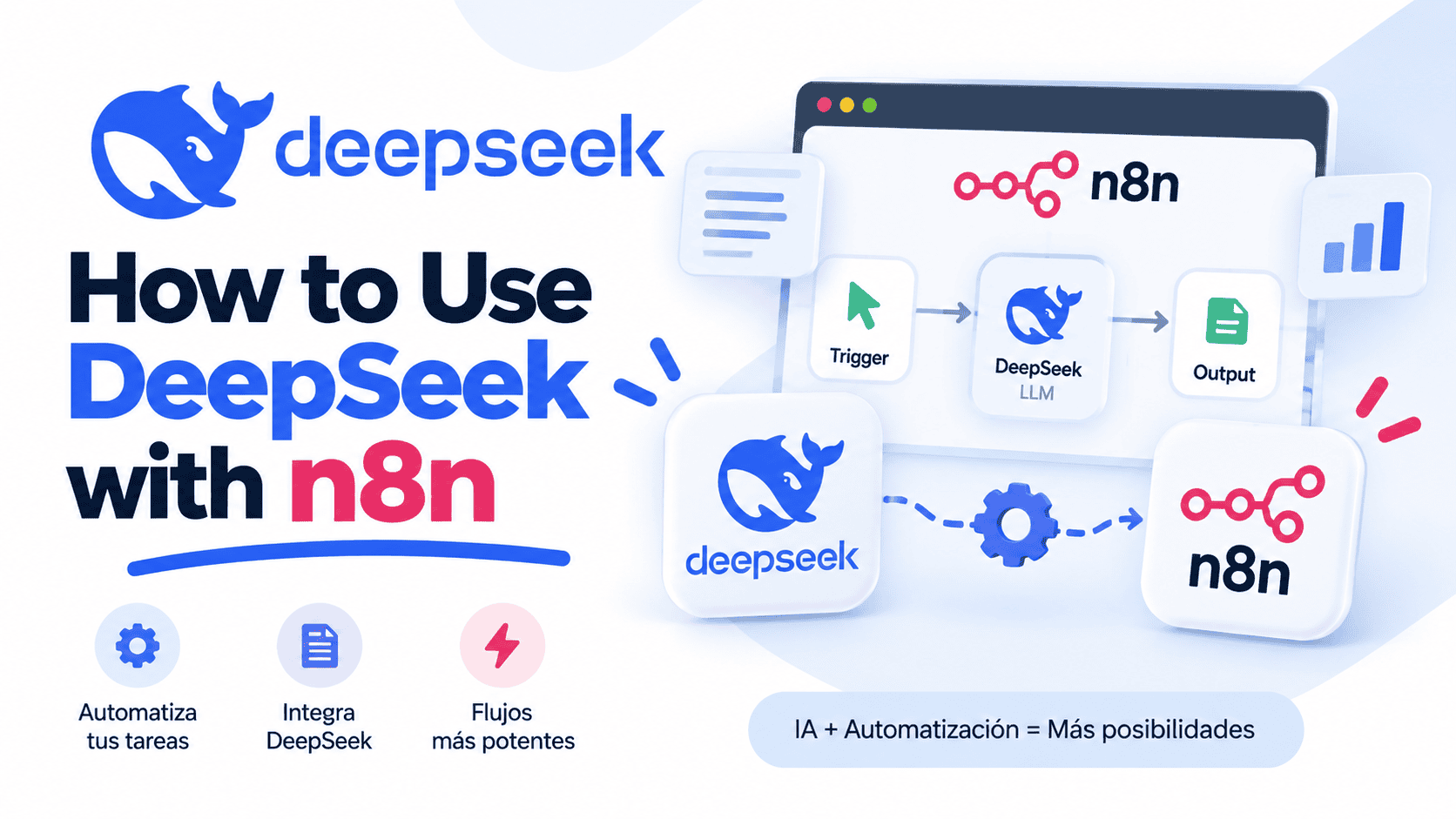

n8n includes a built-in DeepSeek Chat Model, so you can connect DeepSeek to an automation workflow without installing an unofficial community package. In this guide, you will create a working workflow that receives text, sends it to DeepSeek through a Basic LLM Chain, and returns a usable summary. You will also learn how to store the API key safely, select a current model, pass the response to another node, call the API through an HTTP Request when you need more control, and troubleshoot common errors.
Last reviewed: October 16, 2026.
Quick answer: create a DeepSeek API key, save it in an n8n DeepSeek credential, add a Basic LLM Chain, and attach the official DeepSeek Chat Model through the chain’s Chat Model connector. Use the HTTP Request node only when you need API options that the native model node does not expose.
What You Will Build
The first workflow is intentionally simple. It lets you verify that the DeepSeek credential, model connection, prompt, and output all work before you connect email, databases, webhooks, or other services.
Manual Trigger → Edit Fields → Basic LLM Chain
                                  └── DeepSeek Chat Model
Each component has a specific role:
- Manual Trigger starts the workflow when you select Execute Workflow.
- Edit Fields creates sample text that the AI will process.
- Basic LLM Chain constructs the prompt and returns the generated response.
- DeepSeek Chat Model provides the language model used by the chain.
The DeepSeek Chat Model is a sub-node. It attaches to a compatible AI root node through a Chat Model connector rather than appearing as an ordinary step in the main workflow line.
What You Need Before Connecting DeepSeek to n8n
- An n8n Cloud workspace or a current self-hosted n8n installation.
- A DeepSeek API platform account.
- A DeepSeek API key.
- Usable balance in the DeepSeek API account.
- A short piece of non-sensitive text for the initial test.
DeepSeek’s consumer chat product and its API platform are separate usage environments. Do not assume that access to the chat application gives your API account usable credit. DeepSeek deducts API usage from the account’s granted or topped-up balance, and requests can fail with an HTTP 402 error when that balance is insufficient. Check the current terms on the official DeepSeek Models & Pricing page before estimating production costs.
Step 1: Create a DeepSeek API Key
- Sign in to the DeepSeek API platform.
- Open the API Keys page.
- Select Create new secret key.
- Give the key a recognizable name, such as
n8n-testorn8n-production. - Copy the generated key and keep it in a secure password or secrets manager until you add it to n8n.
The official n8n DeepSeek credential uses API-key authentication. Do not paste the key into an Edit Fields node, Code node, prompt, workflow name, screenshot, or exported workflow file.
Step 2: Create a Test Workflow and Sample Input
- Create a new workflow in n8n.
- Add a Manual Trigger node.
- Add an Edit Fields (Set) node after the Manual Trigger.
- In the Edit Fields node, set Mode to Manual Mapping.
- Add a String field named
sourceText. - Set its value to the sample text below.
n8n workflows start with a trigger and pass data between connected nodes. AI model nodes can transform text before the workflow sends the result to another application.The Manual Trigger is suitable for initial testing because the workflow runs only when you start it from the editor. The Edit Fields node lets you create new fields or overwrite incoming values without writing code.
Step 3: Configure the Basic LLM Chain
- Add a Basic LLM Chain after the Edit Fields node.
- Open the Basic LLM Chain.
- Set Prompt to Define below.
- Paste the following text into Prompt (User Message).
Summarize the following source in exactly three concise bullet points.

Use only information present in the source. Do not add outside facts.

Source:
{{ $json.sourceText }}
The expression {{ $json.sourceText }} retrieves the field created by the Edit Fields node. Because the prompt is set to Define below, the chain does not require an incoming field named chatInput.
The Basic LLM Chain documentation explains that chatInput is expected when the prompt is taken automatically from a previous node. Defining the prompt manually avoids that requirement in this test workflow.
You can also open Chat Messages, add a System message, and use the following instruction:
You are a precise workflow assistant. Preserve the meaning of the source and do not invent details.Keep the initial prompt narrow and easy to verify. Add examples, output parsers, or longer instructions only when the actual workflow requires them.
Step 4: Attach the DeepSeek Chat Model
- Open the Basic LLM Chain.
- Select + Chat Model at the bottom of the node, or use the Chat Model connector on the canvas.
- Select DeepSeek Chat Model.
- Open Credential to connect with.
- Select Create New.
- Paste your DeepSeek secret into the API Key field.
- Save the credential.
- Open the Model field and select one of the models available to your account.
n8n loads the model list dynamically from DeepSeek. This means the picker should show models that are currently available to the connected account instead of relying on a model name copied from an older tutorial.
Step 5: Choose the DeepSeek Model and Settings
DeepSeek’s current API documentation lists deepseek-flash and deepseek-v4-pro. For a small summarization or classification workflow, deepseek-flash is a practical starting point when it appears in the n8n model picker. Consider deepseek-v4-pro for more demanding tasks where its additional capability justifies the different cost and performance profile.
Avoid outdated identifiers: older tutorials may still refer to
deepseek-chat,deepseek-reasoner, ordeepseek-v4-flash. Use the current n8n model picker and verify supported identifiers in the official DeepSeek API documentation.
| DeepSeek node setting | Recommended first-test choice | Why it matters |
|---|---|---|
| Model | deepseek-flash, when available | Provides a current starting point for a small text automation. |
| Response Format | Text | The example expects readable bullet points rather than a machine-readable object. |
| Maximum Number of Tokens | Leave unset initially, or use a modest limit | A limit can prevent unnecessarily long output, but it must still leave enough room for the requested response. |
| Sampling Temperature | Do not adjust without a specific reason | Higher values can increase variation. In DeepSeek Thinking Mode, the API ignores this parameter. |
| Timeout | Keep the default for the first test | Change it only after observing real execution times and timeout behavior. |
| Max Retries | Use a limited number for transient failures | Retries can help with temporary server failures but should not repeatedly resend invalid requests. |
| Response Format: JSON | Use only when downstream nodes require JSON | For a strict schema, also use an output parser or validation step. |
The DeepSeek Chat Model node also exposes options such as Base URL, Frequency Penalty, Presence Penalty, Sampling Temperature, Timeout, Max Retries, and Top P. Do not change every option automatically.
DeepSeek currently enables Thinking Mode by default. Its documentation states that temperature, presence_penalty, and frequency_penalty have no effect while Thinking Mode is active. The current n8n DeepSeek node documentation does not list a dedicated Thinking Mode toggle, so use an HTTP Request when you need to enable or disable thinking explicitly.
Step 6: Execute the Workflow and Verify the Result
- Select Execute Workflow.
- Open the Edit Fields execution data and confirm that
sourceTextcontains the sample text. - Open the Basic LLM Chain execution output.
- Confirm that the response contains three concise bullet points.
- Check that the points are based only on the supplied source.
- Confirm that the execution completed without credential, balance, model, or prompt errors.
A successful response confirms that the credential, selected model, prompt expression, and API account can work together. It does not yet make the workflow production-ready. A production workflow also needs input validation, error handling, cost controls, secure logging, and a clear destination for the model output.
How to Pass the DeepSeek Response to Another n8n Node
You can send the generated result to an email node, database, spreadsheet, HTTP endpoint, or another application. Start with an Edit Fields node so you can inspect and rename the response before sending it elsewhere.
- Add an Edit Fields node after the Basic LLM Chain.
- Create a String field named
summary. - Open the incoming execution data panel.
- Drag the generated response from the input panel into the
summaryvalue field. - Execute the node and confirm that
summarycontains only the generated answer.
The response field may be named text or output, depending on the AI root node and node version. Dragging the value from the actual execution data is safer than guessing the property path manually. n8n also recognizes text and output as standard response fields in basic chain and agent workflows.
Which DeepSeek and n8n Integration Method Should You Use?
| Integration method | Best use | Main consideration |
|---|---|---|
| DeepSeek Chat Model | Basic LLM Chains, AI Agents, chatbots, summarization, extraction, and classification | This is the official built-in route and should be the default choice. |
| HTTP Request node | Explicit Thinking Mode control, custom request bodies, raw API responses, or parameters not exposed by the native node | You must configure authentication, the request body, and response mapping yourself. |
| Community node | A specific verified feature that neither the native node nor HTTP Request can provide | Review maintenance, permissions, compatibility, and security before installation. |
| Ollama or another local runtime | Running a compatible DeepSeek-family model on your own infrastructure | This is a local deployment and is separate from DeepSeek’s hosted API. |
For most workflows, start with the official DeepSeek Chat Model. Do not install an unofficial package simply because an older tutorial was written before the built-in integration became available.
Optional: Call the DeepSeek API with the HTTP Request Node
The HTTP Request method is useful when you need to control the raw API body, explicitly disable Thinking Mode, inspect the complete response, or use a parameter that the native DeepSeek node does not currently expose.
- Add an HTTP Request node after the Edit Fields node.
- Set Method to POST.
- Set URL to
https://api.deepseek.com/chat/completions. - Set Authentication to Generic Credential Type.
- Select a Bearer Auth credential. If your n8n version presents Header Auth instead, use the header name
Authorizationand the valueBearer YOUR_API_KEY. - Store the API key inside the credential rather than in an ordinary workflow field.
- Enable Send Body.
- Set Body Content Type to JSON.
- Choose Using JSON and switch the field to Expression mode.
- Use the following object.
{{
  {
    "model": "deepseek-flash",
    "messages": [
      {
        "role": "system",
        "content": "You are a precise automation assistant."
      },
      {
        "role": "user",
        "content": "Summarize this text in exactly three concise bullet points. Use only the source:\n\n" + $json.sourceText
      }
    ],
    "thinking": {
      "type": "disabled"
    },
    "stream": false
  }
}}
This request disables Thinking Mode because the example is a short and direct summarization task. DeepSeek currently supports enabled and disabled values inside the OpenAI-format thinking object.
For tasks that require deeper reasoning, change the thinking type to enabled and add a supported reasoning_effort value such as low, high, or max. Verify the selected model’s current support in the official DeepSeek Thinking Mode documentation.
In a successful non-streaming Chat Completions response, the final answer is available at:
{{ $json.choices[0].message.content }}Add that expression to an Edit Fields node or another destination node after the HTTP Request. Do not expose the API key in the request body, expression, execution notes, or exported workflow.
How to Use DeepSeek with an n8n AI Agent
Use a Basic LLM Chain when the model should perform a defined transformation such as summarizing, extracting, classifying, or rewriting. Use an AI Agent when the model must decide whether and how to call connected tools.
Chat Trigger → AI Agent → response
                  ├── DeepSeek Chat Model
                  ├── Tool
└── Memory, when required- Add a Chat Trigger as the workflow trigger.
- Connect the Chat Trigger to an AI Agent.
- Attach the DeepSeek Chat Model through the AI Agent’s Chat Model connector.
- Add only the tools required for the agent’s task.
- Leave Make Chat Publicly Available turned off while testing.
- Before publication, configure authentication and review who can execute the workflow.
The Chat Trigger documentation states that every user message starts a workflow execution. A conversation containing ten user messages therefore starts ten executions.
DeepSeek supports tool calls in Thinking Mode. When you build a custom multi-turn tool loop with HTTP Request nodes, the API requires the previous assistant message’s reasoning_content to be passed back in subsequent requests that contain tools. Removing that field can produce a 400 error. This requirement is especially important when you manage the conversation state manually instead of letting the native AI Agent integration handle the model interaction.
Common DeepSeek and n8n Errors
| Symptom or error | Likely cause | What to do |
|---|---|---|
| The model dropdown is empty | The credential is invalid, the account cannot retrieve models, or the list did not load correctly | Reopen the credential, verify the API key, confirm API account access, and refresh the node. n8n loads the model list dynamically from DeepSeek. |
401 Authentication Fails | The API key is incorrect, incomplete, expired, or revoked | Create or copy the key again and update the saved n8n credential. Do not add quotation marks around the key. |
402 Insufficient Balance | The API account has no usable balance | Check the DeepSeek API balance and top up the account when required. |
400 Invalid Format | The HTTP request body is malformed or required conversation fields are missing | Inspect the execution input, validate the JSON, and compare the body with the current API documentation. For Thinking Mode tool calls, preserve reasoning_content. |
422 Invalid Parameters | The model identifier or another request parameter is invalid | Select a model shown in the current model list and remove unsupported parameters. |
429 Rate Limit Reached | The workflow is sending requests too quickly or has exceeded a concurrency or QPS limit | Reduce concurrency, process items in controlled batches, and add a delay before retrying. |
500 Server Error or 503 Server Overloaded | A temporary problem occurred on the DeepSeek service | Retry after a brief delay and route repeated failures to an error-handling path. |
A Chat Model sub-node must be connected | The Basic LLM Chain or AI Agent does not have a model attached | Open the root node, select + Chat Model, and attach the DeepSeek Chat Model. |
No prompt specified | The prompt is empty, invalid, or configured to use a missing chatInput field | Choose Define below and enter a valid prompt, or create a valid chatInput field in the previous node. |
| The same value is used for multiple input items | An expression inside the model sub-node resolves against the first input item | Move item-specific expressions to the root node, process one item at a time, or redesign the workflow so each model execution receives the intended item. |
| The request times out | The prompt, output, model processing, or infrastructure takes longer than the configured timeout | Reduce unnecessary input, review the selected model, increase the timeout cautiously, and avoid unlimited retries. |
The status-code descriptions above follow the official DeepSeek API error documentation. Always read the detailed error message returned in the n8n execution because it may identify the exact invalid parameter or request field.
Production Checklist
- Keep the API key in n8n Credentials. Never store it in a prompt, Code node, ordinary field, or exported workflow JSON.
- Test with non-sensitive data. Do not use real customer records while validating the workflow.
- Send only the fields the task needs. Remove unrelated personal, financial, or confidential data before the model request.
- Validate structured output. When another node depends on exact JSON fields, use a Structured Output Parser or a separate validation step.
- Limit output where appropriate. Set a token limit that fits the expected result without cutting it off.
- Add controlled retries. Retry temporary rate-limit and server errors after a delay, but do not repeatedly retry invalid credentials or malformed requests.
- Monitor API balance and usage. Do not wait for a production workflow to stop with a 402 error.
- Handle multiple items deliberately. Remember that expressions inside model sub-nodes resolve against the first input item.
- Protect public chats. Configure authentication, review allowed origins, and prevent unrestricted anonymous use when it is not required.
- Review saved execution data. Prompts and model responses may contain sensitive information even when the API key is stored correctly.
- Keep self-hosted n8n updated. Update through the supported deployment process before diagnosing a missing built-in node.
- Back up the self-hosted encryption key. A restored n8n database cannot decrypt stored credentials without the original encryption key.
n8n encrypts stored credentials before saving them to the database. A self-hosted installation generates an encryption key on first launch, or the administrator can provide a custom N8N_ENCRYPTION_KEY. Store that key securely and separately from the database backup.
Frequently Asked Questions
Does n8n support DeepSeek natively?
Yes. Current n8n documentation includes an official DeepSeek Chat Model and a dedicated DeepSeek API-key credential. The model attaches as a sub-node to a compatible chain or agent root node.
Do I need to install a DeepSeek community node?
No. A community node is not required for the standard hosted DeepSeek API workflow described in this guide. Start with the official DeepSeek Chat Model or the built-in HTTP Request node.
Which DeepSeek model should I use in n8n?
Select a model from the list loaded inside the DeepSeek Chat Model node. For common text workflows, deepseek-flash is a practical starting point. Consider deepseek-v4-pro for more demanding tasks. Verify current model availability before publishing a workflow that depends on a specific identifier.
Can I use DeepSeek with both n8n Cloud and self-hosted n8n?
The DeepSeek Chat Model is a built-in n8n integration. If it is missing from an older self-hosted installation, review the installed n8n version and update through the supported deployment method before installing an unofficial alternative.
Is using DeepSeek with n8n free?
The built-in integration does not make DeepSeek API calls free. API usage is billed according to the current DeepSeek model rates and deducted from the API account balance. n8n costs depend on whether you use n8n Cloud, a paid self-hosted edition, or your own infrastructure.
Can DeepSeek return JSON to n8n?
Yes. The DeepSeek Chat Model node provides a JSON response-format option. When downstream nodes require a precise schema, turn on Require Specific Output Format in the compatible root node and connect a Structured Output Parser instead of relying only on free-form JSON instructions.
Can I use DeepSeek with an n8n AI Agent?
Yes. Attach the DeepSeek Chat Model to the AI Agent’s Chat Model connector, then add the required tools. For a public chatbot, connect a Chat Trigger and configure access, authentication, execution usage, and memory according to the workflow’s requirements.
Can I run a DeepSeek model locally with n8n?
You can connect n8n to a compatible DeepSeek-family model running through Ollama or another local inference server. That setup uses your own infrastructure and is separate from the hosted DeepSeek API. In n8n, you would normally use the Ollama Chat Model rather than the DeepSeek API credential.
Final Takeaway
The simplest way to use DeepSeek with n8n is to attach the official DeepSeek Chat Model to a Basic LLM Chain or AI Agent, store the API key in an n8n credential, and choose a model from the dynamically loaded list. Begin with a small Manual Trigger workflow, verify the response, and only then add real data sources, public chat access, tools, or production actions.
Use the HTTP Request node when you need direct control over Thinking Mode, custom request fields, or the raw DeepSeek response. Whichever method you choose, avoid obsolete model identifiers, validate outputs before passing them to another system, and add clear handling for authentication, insufficient balance, invalid parameters, rate limits, and temporary service failures.