
Last verified: October 8, 2026
If DeepSeek is not working, do not assume the whole service is down. DeepSeek can fail for several different reasons: an official outage, temporary overload, a login or account problem, a browser issue, a mobile app problem, a blocked network, an API key or billing issue, a rate-limit/concurrency problem, a third-party provider outage, or an outdated model name copied from an old tutorial.
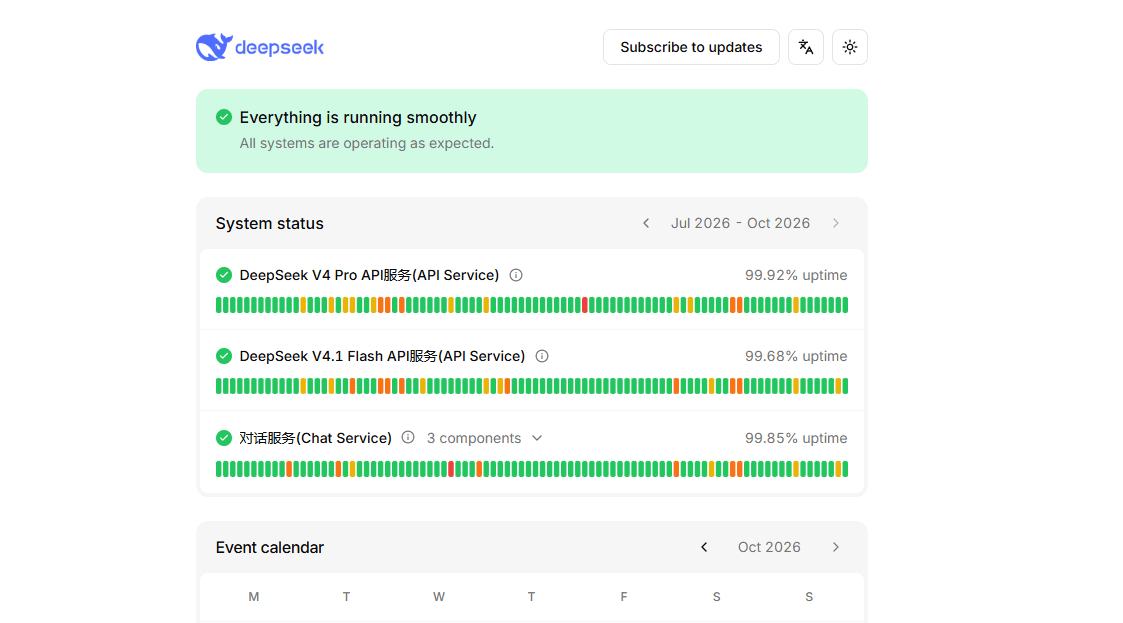
The first step is to check the official DeepSeek Status page. At the time of this review, the page showed “Everything is running smoothly,” with separate status components for DeepSeek V4 Pro API Service, DeepSeek V4.1 Flash API Service, Chat Service, File Upload Service, and Search Service.
If the status page shows a live incident, the best fix is usually to wait, avoid aggressive retries, and check which component is affected. If the status page is normal, use the symptom-based fixes below to narrow the issue.
Quick fix checklist
- Check the official DeepSeek Status page first.
- Confirm whether the issue affects web chat, the mobile app, login, file upload, search, or the API.
- If the web app is blank or stuck, try a private window, a different browser, and clearing only DeepSeek site data.
- If the mobile app fails, update the official app from App Store or Google Play.
- If login fails, check the official FAQ and password reset flow before repeatedly requesting verification codes.
- If the API fails, diagnose by HTTP code: 401 is authentication, 402 is balance, 429 is limit/concurrency, and 503 is overload.
- If old code uses
deepseek-reasoner,deepseek-chat, ordeepseek-v4-flash, check the current model table before blaming the API. - If DeepSeek works on mobile data but not work or school Wi-Fi, the network may be blocking it.
- Do not paste passwords, API keys, private documents, client data, or confidential work files while troubleshooting.
Is DeepSeek down right now?
Use the official status page, not social media or random outage trackers, as your first source. DeepSeek separates its status by service component, which matters because one part can fail while another still works.
| Status component | What it affects | What to do if degraded |
|---|---|---|
| DeepSeek V4 Pro API Service | API calls to deepseek-v4-pro. | Pause heavy jobs, reduce retries, and consider a current supported alternative only if your workload allows it. |
| DeepSeek V4.1 Flash API Service | API calls to deepseek-flash. | Use backoff, queue traffic, and wait for recovery if the issue is service-side. |
| Chat Service | Web chat and app conversation responses. | Wait, refresh later, and avoid repeated prompt submissions. |
| File Upload Service | Uploading files into DeepSeek chat or supported workflows. | Try later or test chat without file upload. |
| Search Service | Search-enabled answers and web/search retrieval features. | Use normal chat without search or retry later. |
If the page says everything is operating normally, your issue is more likely local: browser, app, login, network, API key, balance, request format, model name, or a third-party gateway.
DeepSeek not working: symptom table
| Symptom | Likely cause | First fix |
|---|---|---|
| DeepSeek web page does not load | Browser cache, extension, DNS, network block, or service issue. | Check status, then try private mode or another browser. |
| DeepSeek app will not open | Old app version, corrupted cache, phone OS issue, or service problem. | Update the official app, restart the app, then restart the phone. |
| Login fails | Wrong password, expired session, unsupported email domain, blocked scripts, or account issue. | Use password reset or the official FAQ; try another browser. |
| Verification code does not arrive | Email delay, spam filtering, unsupported domain, repeated requests, or registration pressure. | Check spam, wait before resending, and follow the official FAQ. |
| Chat is slow | High load, long prompt, large file, network latency, or model congestion. | Shorten the prompt and check Chat Service status. |
| “Server busy” or overloaded message | Temporary service pressure. | Wait, retry later, and avoid rapid repeated requests. |
| File upload fails | File Upload Service issue, unsupported/large file, or network failure. | Check File Upload Service status and try a smaller file if appropriate. |
| Search does not work | Search Service issue or search integration problem. | Check Search Service status; use normal chat until it recovers. |
| API returns 401 | Wrong or missing API key. | Check the Bearer token and environment variable. |
| API returns 402 | Insufficient balance. | Check account balance and top up if needed. |
| API returns 429 | Request rate or account-level concurrency limit reached. | Throttle, queue, reduce concurrency, and add backoff. |
| API returns 503 | DeepSeek server overloaded due to high traffic. | Retry after a short wait with bounded backoff. |
| Old model name fails | Outdated tutorial or legacy model alias. | Check the current /models docs and Models & Pricing. |
| DeepSeek works on mobile data but not work Wi-Fi | Work, school, or managed-network block. | Follow the network owner’s policy; do not bypass restrictions. |
| Third-party provider fails | OpenRouter, NVIDIA, DeepInfra, Ollama, LM Studio, or another host issue. | Check that provider’s status and model mapping. |
Fix DeepSeek web chat not working
If DeepSeek web chat does not load, freezes, shows a blank screen, or stops responding, work through these steps in order:
- Check the DeepSeek Status page, especially Chat Service.
- Refresh the page once. Do not spam refresh during a known outage.
- Open DeepSeek in a private/incognito window.
- Try a different browser.
- Clear cookies and cached site data for DeepSeek only, not your entire browser unless needed.
- Temporarily disable aggressive ad blockers, script blockers, privacy extensions, or corporate browser controls only if your policy allows it.
- Try a personal network or mobile hotspot only if this does not violate work, school, or government rules.
- Log out and log back in if the session appears expired.
If web chat works on one network but not another, the problem may be DNS, firewall, content filtering, device management, or workplace/school policy. Do not use a VPN to bypass rules on a managed device or network.
Fix DeepSeek app not working on iPhone or Android
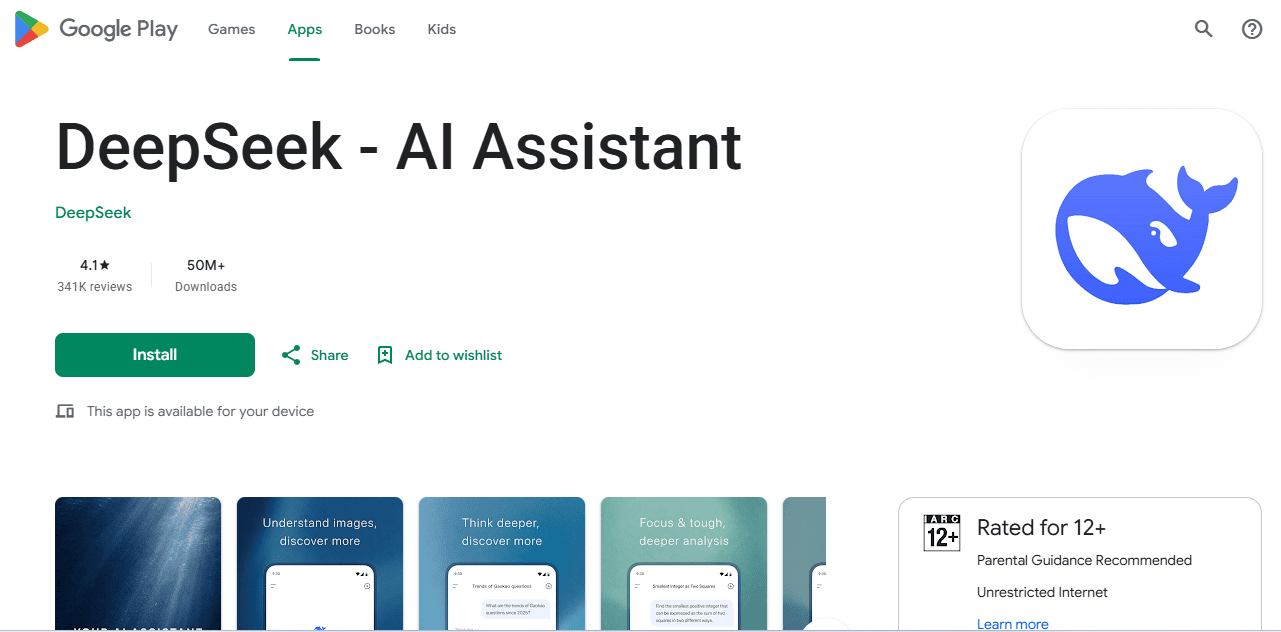
First, make sure you installed the official DeepSeek app. The official pages describe the app as “DeepSeek – AI Assistant” and list the contact email as [email protected]. Use the official DeepSeek download page, Apple App Store, or Google Play.
Then try:
- Update the app from the official store.
- Close and reopen the app.
- Restart your phone.
- Switch between Wi-Fi and mobile data to test whether the network is the issue.
- On Android, clear the app cache if the app keeps freezing.
- On iPhone, uninstall and reinstall only after making sure you know your login method.
- Check Chat Service status if the app opens but cannot answer.
- Avoid unofficial APKs, modified apps, clone apps, or “DeepSeek” apps from unknown publishers.
If the app crashes after an update, check the app-store page for the latest version and contact official support if the problem continues. Do not enter your credentials into unofficial “fix” apps or mirrors.
Fix DeepSeek login or signup not working
Login and signup problems are different from chat-response problems. DeepSeek may be working normally while your account flow is failing.
Use the official DeepSeek FAQ for account-specific guidance. The FAQ includes entries related to unsupported email domains and password changes.
If your password is not working
- Use the official password reset flow.
- Check whether your password manager is filling an old password.
- Try logging in from the official web chat, then from the app.
- Do not reuse a password exposed on another site.
If the verification code does not arrive
- Check spam, promotions, and filtered folders.
- Make sure the email address or phone number is typed correctly.
- Wait before requesting another code; repeated requests can make troubleshooting harder.
- Check whether the official FAQ mentions a domain restriction or unsupported email message.
- Use only the official DeepSeek site or app for account recovery.
Do not buy DeepSeek accounts, use shared accounts, or enter your login information into third-party “account recovery” pages.
Fix “server busy,” slow replies, and timeouts
A “server busy” or overloaded message usually means the service is under pressure, not that your account is banned. It can happen when demand is high, a model is congested, a component is degraded, or your request is large.
- Check the official status page first.
- Wait a few minutes before retrying.
- Shorten very long prompts.
- Try without file upload or search if those components are degraded.
- Avoid repeatedly submitting the same prompt during an incident.
- If using the API, reduce concurrency, output length, and retry pressure.
For API developers, slow responses can also keep connections open longer, which matters because DeepSeek counts a request as one concurrent connection from the time it is sent until the model response is complete.
Fix file upload and search issues
File upload and search can fail even when normal chat works. That is why the status page separates File Upload Service and Search Service.
- If file upload fails, check File Upload Service status.
- If search answers fail or do not return current information, check Search Service status.
- Try a smaller file or a simpler query if appropriate.
- Try normal chat without search or file upload.
- Do not upload sensitive files repeatedly while troubleshooting.
- Do not assume file-upload failure means all DeepSeek services are down.
Only use official DeepSeek surfaces for file uploads. Avoid uploading private files to unofficial DeepSeek mirrors, browser extensions, or third-party “fix” tools.
For PDF-specific checks, see our DeepSeek PDF upload guide.
Fix DeepSeek API not working
For API problems, do not troubleshoot by guessing. Read the HTTP status code and compare it with DeepSeek’s official Error Codes page.
Our DeepSeek API error-code guide maps the response code to the next diagnostic step.
| Code | Official meaning | What to do | Retry? |
|---|---|---|---|
| 400 | Invalid request body format. | Fix JSON/body format and follow the API reference. | No, not until fixed. |
| 401 | Authentication failed because the API key is wrong. | Check Authorization: Bearer, environment variable, and API key. | No, not until fixed. |
| 402 | Insufficient balance. | Check account balance and top up if needed. | No, not until balance is fixed. |
| 422 | Invalid parameters. | Check model name, endpoint, tools, image/files usage, and unsupported parameters. | No, not until fixed. |
| 429 | Rate limit reached or concurrency limit exceeded. | Throttle, queue requests, reduce concurrency, and add backoff. | Yes, carefully after slowing down. |
| 500 | DeepSeek server-side issue. | Retry after a brief wait; contact support if persistent. | Yes, bounded retry. |
| 503 | Server overloaded due to high traffic. | Retry after a short wait and reduce pressure. | Yes, bounded retry. |
The most common mistake is retrying every error. Do not retry 401, 402, 400, or 422 blindly. Those usually require a fix to authentication, balance, request format, or parameters.
401: Authentication Fails
A 401 error means the API key is wrong or missing. It is not a model problem and not a prompt-quality issue.
- Make sure you are using a DeepSeek API key, not an app password.
- Use the correct header:
Authorization: Bearer YOUR_KEY. - Check that your environment variable is loaded in the same shell or runtime.
- Do not expose your API key in screenshots, logs, GitHub issues, browser code, or mobile apps.
- If a key may have leaked, rotate it.
402: Insufficient Balance
A 402 error means the account has run out of balance. It is not rate limiting and not an outage.
- Check the account balance in the DeepSeek Platform.
- Top up if your project needs more usage.
- Check whether an automated job unexpectedly consumed credits.
- Add billing alerts or usage monitoring before production traffic grows.
429: Rate Limit Reached
DeepSeek’s Error Codes page describes 429 as sending requests too quickly. DeepSeek’s Rate Limit & Isolation page explains the operational model in terms of account-level concurrency limits: deepseek-flash has a documented concurrency limit of 2500, and deepseek-v4-pro has a documented concurrency limit of 500. When the account-level concurrency limit is exceeded, the API returns HTTP 429.
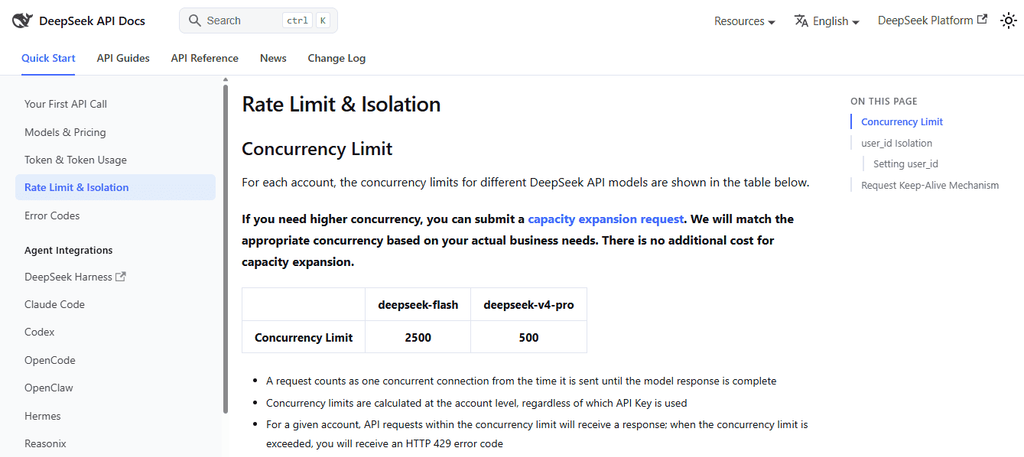
Important details from the official rate-limit documentation:
- A request counts as one concurrent connection from the time it is sent until the model response is complete.
- Concurrency limits are calculated at the account level, regardless of which API key is used.
- Creating more API keys does not bypass the account-level limit.
- Long generations and streaming responses keep connections open longer.
- The
user_idparameter can support isolation and scheduling, but regular users should not treat it as a way to multiply account-wide limits.
To fix 429:
- Use a request queue.
- Limit concurrency with a semaphore or worker pool.
- Use exponential backoff with jitter.
- Reduce maximum output length when possible.
- Avoid repeated rapid retries.
- Separate heavy batch jobs from interactive traffic.
- Request capacity expansion only if you have a real business need.
503: Server Overloaded
A 503 error means DeepSeek says the server is overloaded due to high traffic. It is not the same as 429. With 429, your traffic is too fast or over concurrency. With 503, the server side is overloaded.
To handle 503:
- Retry after a brief wait.
- Use bounded backoff instead of infinite retry loops.
- Reduce nonessential traffic.
- Check the status page for component incidents.
- Log the error, time, model, endpoint, and request ID if available.
- Consider graceful fallback only if your product requires high availability.
400 and 422: request format or parameter problems
400 and 422 are usually developer mistakes, not server outages.
| Error | Common cause | Fix |
|---|---|---|
| 400 Invalid Format | Malformed JSON, wrong body shape, wrong content type, or incorrect API format. | Compare your request with the official API reference. |
| 422 Invalid Parameters | Unsupported parameter, invalid model name, wrong endpoint, wrong tool format, bad image/file field, or outdated example. | Remove unsupported fields and check current model docs. |
If you copied code from an old R1 tutorial, check the model name first. Old examples may use names that are no longer the best current default.
Current DeepSeek model names and old tutorial mistakes
DeepSeek’s current /models documentation lists deepseek-flash as DeepSeek-V4.1-Flash and deepseek-v4-pro as DeepSeek-V4-Pro. It also shows metadata such as context window, maximum output tokens, input modalities, output modalities, reasoning effort levels, and Anthropic API behavior.
DeepSeek’s V4.1 Flash release note says new code should set the model to deepseek-flash. It also says old names such as deepseek-v4-flash and deepseek-v4-flash-vision-exp are retired model names temporarily routed to V4.1 Flash for compatibility.
| Model name | Current practical guidance |
|---|---|
deepseek-flash | Use as the current Flash/V4.1 Flash model ID in new examples. |
deepseek-v4-pro | Use only if your workload specifically needs V4 Pro and current docs/pricing support it. |
deepseek-v4-flash | Do not use as the preferred new model name; it is legacy compatibility context. |
deepseek-v4-flash-vision-exp | Do not use as the preferred new Vision model name; use current docs. |
deepseek-chat | Old examples may mention it; do not assume it is the current default. |
deepseek-reasoner | Old R1-era examples may mention it; check current docs before using it. |
If your code fails only after changing model names, the problem may be an outdated tutorial, not a DeepSeek outage.
Third-party provider vs official DeepSeek problems
Many users access DeepSeek models through another provider or a local runtime. If DeepSeek is not working through OpenRouter, NVIDIA, DeepInfra, Azure, Ollama, LM Studio, LiteLLM, or another gateway, check that provider separately.
| Where you use DeepSeek | What could be broken | What to check |
|---|---|---|
| Official DeepSeek API | DeepSeek API service, key, balance, rate limit, model name. | DeepSeek status, DeepSeek error code, DeepSeek docs. |
| OpenRouter or another gateway | Provider routing, model mapping, key, billing, provider outage. | The gateway’s own status and docs. |
| NVIDIA / DeepInfra / cloud host | Host-specific endpoint, deployment, auth, capacity, billing. | The host’s status page and model list. |
| Ollama or LM Studio | Local model not downloaded, memory issue, local server issue. | Your local runtime logs and model tags. |
| Browser extension or unofficial app | Third-party app issue or account/security risk. | Use official DeepSeek app/site instead. |
A third-party provider error is not proof that official DeepSeek is down.
Network, VPN, school, workplace, and government-device blocks
If DeepSeek works on your phone’s mobile data but not on work, school, hotel, or government Wi-Fi, the problem may be local network policy rather than DeepSeek itself.
- Workplaces may block AI chat services or file-upload tools.
- Schools may block AI tools during exams or on managed devices.
- Government networks may restrict DeepSeek based on device or agency policy.
- Corporate DNS, firewall, proxy, browser extension, or endpoint-management software may block the service.
- VPNs can trigger login risk checks, CAPTCHAs, regional issues, or policy violations.
Do not use a VPN to bypass work, school, or government restrictions. Ask the network owner or IT administrator what is allowed.
Privacy and API key safety while troubleshooting
Troubleshooting often causes people to paste more data than necessary. Avoid that.
- Do not paste passwords, API keys, recovery codes, private keys, or access tokens into DeepSeek.
- Do not upload client files, source-code secrets, legal documents, medical records, financial records, student records, or government data just to test whether upload works.
- Do not post API keys in screenshots, logs, Discord, GitHub issues, support tickets, or forums.
- Rotate a key immediately if it may have been exposed.
- Use official DeepSeek surfaces only.
- Be careful with browser extensions that can read page content.
DeepSeek’s Privacy Policy says the service may collect user inputs such as prompts, uploaded files, photos, feedback, and chat history, and also says the service is not designed to process sensitive personal data. Keep that in mind when testing issues.
When to contact support or stop troubleshooting
Stop repeating the same fix and escalate when:
- The official status page shows an active incident.
- Chat, upload, and search all fail across multiple devices and networks.
- Login fails across browsers and the official password reset does not help.
- API authentication fails after verifying the key, header, and environment variable.
- Balance looks wrong or API charges do not match your expectations.
- 500 or 503 persists after bounded retries.
- The official mobile app crashes after update, restart, and reinstall.
- A work, school, or government device policy may be blocking access.
Use official contact channels visible on DeepSeek’s pages. The official website and app-store listings show [email protected] for general service contact, while the API docs show [email protected] for API community/support context.
Frequently asked questions
Why is DeepSeek not working?
DeepSeek may not be working because of an official service incident, temporary overload, a browser or app issue, login trouble, network blocking, API authentication, insufficient balance, rate limits, or an outdated model name. Start with the official status page, then diagnose by symptom.
Is DeepSeek down right now?
Check the official DeepSeek Status page. At the time this article was verified, the page showed all systems operating as expected. Because outages change quickly, check the live page before assuming a current outage.
Why does DeepSeek say server busy?
“Server busy” usually means high traffic, temporary congestion, or service pressure. Wait, shorten the request, avoid repeated retries, and check Chat Service or API Service status.
Why is DeepSeek so slow?
Slow replies can come from high demand, long prompts, large files, search/file services, network latency, or API concurrency pressure. Check the status page and try a shorter request.
Why can’t I log in to DeepSeek?
Possible causes include a wrong password, expired session, unsupported email domain, blocked scripts, network policy, or account-specific issue. Use the official FAQ and password reset flow, and try a different browser if needed.
Why is the DeepSeek app not opening?
Update the official app, restart it, restart your phone, test another network, and check the status page. Avoid unofficial APKs and copycat apps.
Why is file upload not working?
File upload may fail even when chat works. Check the File Upload Service on DeepSeek’s status page. If status is normal, try a smaller file and avoid uploading sensitive documents during troubleshooting.
Why is DeepSeek search not working?
Search may fail separately from chat. Check the Search Service status, try normal chat without search, and retry later if the component is degraded.
Why is my DeepSeek API key not working?
If you see 401, check whether the API key is correct, the Bearer token is set, and your environment variable is loaded. If you see 402, check your account balance.
What does DeepSeek 401 mean?
401 means authentication failed because the API key is wrong or missing. Fix the key before retrying.
What does DeepSeek 402 mean?
402 means insufficient balance. It is a billing/account issue, not a rate-limit or outage issue.
What does DeepSeek 429 mean?
429 means the request rate or concurrency limit has been reached. Reduce concurrency, queue requests, and use backoff. Creating more API keys under the same account does not bypass the account-level concurrency limit.
What does DeepSeek 503 mean?
503 means the server is overloaded due to high traffic. Retry after a short wait with bounded backoff.
Is deepseek-reasoner still supported?
Do not use old R1-era examples as your default without checking current docs. For current API work, check the Models & Pricing page and the /models endpoint documentation.
Should I use deepseek-flash or deepseek-v4-pro?
Use the current model that fits your workload. DeepSeek’s /models docs currently list deepseek-flash as DeepSeek-V4.1-Flash and deepseek-v4-pro as DeepSeek-V4-Pro. Check current pricing, status, and feature support before production use.
Why does DeepSeek work on mobile data but not work Wi-Fi?
The Wi-Fi network may block DeepSeek through DNS, firewall, content filtering, or device-management policy. This is common on work, school, hotel, and government networks.
Should I use a VPN if DeepSeek is not working?
Do not use a VPN to bypass work, school, or government restrictions. VPNs can also create login and risk-check problems. Follow the network owner’s policy.
Bottom line
When DeepSeek is not working, check the official status page first, then diagnose by symptom. Web chat, app login, file upload, search, API authentication, billing, rate limits, and third-party provider failures are different problems with different fixes.
For API developers, use the official error code table: 401 means authentication, 402 means balance, 429 means request rate or concurrency, and 503 means server overload. For model-name problems, check the current /models endpoint and Models & Pricing page before assuming the API is broken.
Most importantly, do not troubleshoot by repeatedly submitting sensitive data, exposing API keys, or using unofficial DeepSeek apps. Use official sources, narrow the failure, and apply the fix that matches the symptom.
Official sources checked
- DeepSeek Status page
- DeepSeek API Error Codes
- DeepSeek Rate Limit & Isolation
- DeepSeek List Models API
- DeepSeek Models & Pricing
- DeepSeek V4.1 Flash release note
- DeepSeek official website
- DeepSeek official download page
- DeepSeek web chat
- DeepSeek FAQ
- DeepSeek – AI Assistant on the U.S. App Store
- DeepSeek – AI Assistant on Google Play
- DeepSeek Privacy Policy